Webmin - Setup
Webmin#
Install Webmin on Alpine: https://webmin.com/download/
Since Alpine uses apk as its package manager and is built on a library called musl. The apt, dnf command would not work.
Use the following commands to install webmin:
- Run this to install Perl and the encryption libraries:
| apk add perl perl-net-ssleay perl-io-tty openssl python3 wget tar |
|---|
- we will need to use the TAR file from the Webmin website:
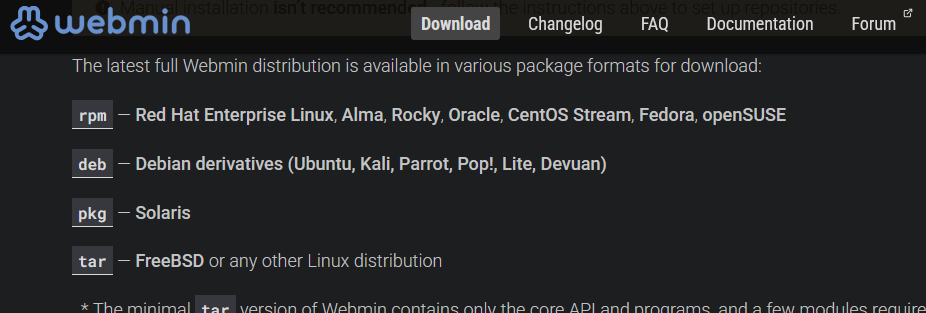
| Command | cd /tmp wget “https://excellmedia.dl.sourceforge.net/project/webadmin/webmin/2.630/webmin-2.630.tar.gz?viasf=1" -O webmin.tar.gz tar -zxvf webmin.tar.gz
| cd webmin-2.630 | |
|---|---|
| Now, run the setup script. This will install Webmin into /opt/webmin | ./setup.sh /opt/webmin |
| Follow the menu in the terminal to complete the setup | Config file directory [/etc/webmin]: Press Enter to accept the default. |
| Log file directory [/var/webmin]: Press Enter to accept the default. | |
| Full path to perl [/usr/bin/perl]: Press Enter. (Alpine’s perl is located here). | |
| Web server port [10000]: Type your custom port number here (e.g., 51717) and press Enter. | |
| Login name [admin]: Type your desired username and press Enter. | |
| Login password: Type your password and press Enter. (Note: The characters will not appear as you type). | |
| Password again: Retype your password to confirm. | |
| The OS Question: Since this is Alpine, the script might ask you to pick an OS. If Alpine isn’t listed, choose Generic Linux or Other. | |
| To get the exact version run “cat /etc/alpine-release” in a second terminal window. | |
| Use SSL (y/n): Type y and press Enter. This is critical for security since you are using a web interface to manage a server. | |
| Access the interrace on the url it presents or using the ip address with port you selected. |